Sunday, May 4, 2014

Thoroughly Ashamed as a Blogger!

I love to write, and find therapy in it, but don't do it as often as I should. While attending EdCamp Region 4 yesterday, someone asked me for my blog, and embarrassingly I had to tell her that I had one but did not use it as I should. I was even more embarrassed when I realized it had been almost a year since I posted anything. Thoroughly ashamed!

Yesterday was the second time I have attended an EdCamp! It was AWESOME! It is the type of conference where the sessions of the day are not lined up until everyone shows up and shares what they would like to hear/discuss that day and then the sessions are created. Many of the sessions I went to were about topics I wanted to know more about, but then there was one I had some knowledge of and ended up not only learning but sharing and making some great connections with other educators.  Someone from my district made the comment that she loved how people just sat around and SHARED out their great ideas with strangers who left being friends! If you have never attended one, you definitely need to add it to your list of things to do!


Something fun I learned about was Kahoot! You don't need special remote response systems. It is web based and can be run on a laptop, iPad, iPhone, iPod, Android, Chromebook, Windows Phone or PC.  Students get immediate feedback in a game-like atmosphere, and teachers can get a resulting spreadsheet with student data input. Fun and easy, check it out!

Monday, May 13, 2013

Posts


Today, I am testing out a new app! It is called "Posts"This app was on a list of FREE apps for today, normally $9.99! It allows me to post to my blogs from my iPad! So far it has been pretty easy to set up, and appears to be user friendly! I was able to upload pics from my Camera Roll which I edited with an app called Camera+.

Monday, December 3, 2012

Appy Hour Starts Today!

I will be hosting an Appy Hour the first Monday of each month (or will try to stick to that schedule).  This will be a time where I share apps I think you might find interesting and then open it up for others to share apps they find useful! This could be lots of fun! I am looking forward to input from teachers, administrators and other staff. Feel free to comment and tell me what your favorite apps are! I will post links to apps we have discussed each month on here.

Thursday, September 13, 2012

QR Wonderful! (part 3)

Now that you have played with the QR Codes and have some experience creating them, let's look at some different forms of QR codes and some sites that will spice up your use of them!

QR voice

http://qrvoice.net/
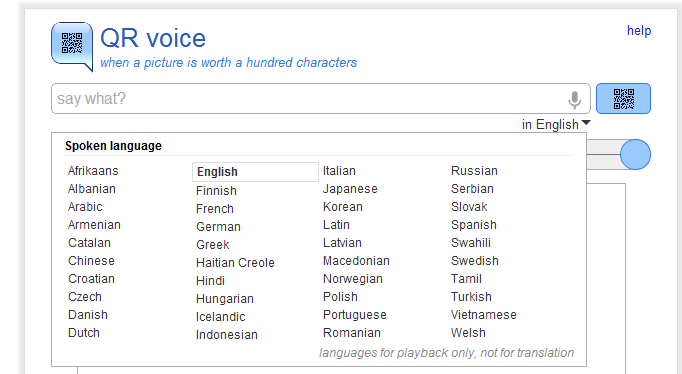
 Allows you to create a QR code that produces an audio clip of up to 100 characters in 40 languages. We have used them to make vocabulary activities. A couple of examples would be when introducing new words. Students each received a card with a code on it, scanned it, and then found and stood by the word on the wall that they felt represented the definition. Students then checked with each other to see if they agreed. Another teacher placed her codes on cards around the room: on the wall, under desk, sides of shelves and cabinets, creating a scavenger hunt for students to find and answer. Students absolutely loved it!

QR Stuff 

QR Codes in color!

http://www.qrstuff.com/

QR Treasure Hunt Generator

Create a treasure hunt for your students or staff! I have used it as a professional development activity to spark an interest in the possibilities of using the codes in a class. Teachers loved it. They have lots of pre-made activities also that you can access. Be sure to preview the entire set before using.

http://www.classtools.net/QR/

QR Codes in Education - LiveBinder

LiveBinders are like three ring binders online where you can store websites, documents and many other items! Here is the link to a blog post I did on LiveBinders February, 2011.  The binder can be made public and shared with others, and someone has created a nice one on QR Codes that you can access! When you click on a tab you will see a page or an address you can access.
http://www.livebinders.com/play/play_or_edit?id=51894


Monday, August 27, 2012

QR Wonderful! (part 2)

So excited this morning when a former teacher, now administrator, shared with me her use of a QR code in a handout for her parents! It linked them to the campus Facebook page where information is posted almost daily. Great use of the code! I would love for others to share ways you have used codes.

You know how to scan now, so how do you create your own codes? There are many ways. I will show you a couple of sources that I use.

i-nigma
I recommended the use of i-nigma as an app on your phone because it has been one of the best I have used, but I also love the website. It allows you to create your own QR codes for websites, text messages, and general information! There are others that do the same such as KaywaGoQR.me, and QR Code Generator. I think it all comes down to personal preference, so you may want to check out these others and see which one you like best.

You will notice the format in i-nigma is very easy. You choose whether you want your QR Code to take the scanner to a website link, an embed code, your contact details, or an SMS (text message).  I do prizes sometimes in my sessions and will have cards with QR Codes on them with "Winner", or a variety of  "You have a winning attitude, but you did not win a prize today!". Teachers love to scan and see if they win something. When I set it up this is what it looks like. I then right click on my code and save the image. If you give it a title, it will save the title within the image, so I usually don't give it a title and just name it when I save it.

This is what the person scanning the code sees on their phone!


Chrome
Another way I create QR codes is using a Chrome extension. If you use Chrome as a browser, you simply go to your Chrome Web Store and search for QR Code Generator - there are dozens! If you use a URL shortener often then you might consider the goo.gl URL Shortener. Not only does it provide a URL shortener but a QR code as well.
Those are the two most common ways I create codes! This week I want you to try creating two codes, one for a website and one for a message!  Feel free to share with me. You can email your codes to me at morelandj@navasotaisd.org. Only share if you don't mind my using it in my blog at some point possibly!


Tuesday, August 21, 2012

QR Wonderful! (part 1)

This is one of a series on QR codes.  If I put it all in one post, I am afraid you would not read it! I know I probably would not. I was able to do a few sessions on campuses last year with QR Codes and all of the teachers really seemed to enjoy it. Some put what they learned to use immediately, and many have asked for a refresher session on it. Hopefully, you will be able to begin using QR Codes educationally by the time this series is finished!

Many of you are probably still wondering what is all the excitement about QR Codes. The answer to that is that with one scan of a code you can have various types of information at your fingertips! What exactly are QR codes? Here is a simple explanation:


You now need to download an app for a scanner. There are many scanners out there, and most are free. My favorite scanner so far is i-Nigma. It seems to run the fastest, the easiest, and is available for almost all SmartPhones. I also like this app because the website is very user friendly when it comes to creating your own codes, but we will discuss that in a later session. So go download a scanner so you can practice using it with the code below!

 
 You should have seen this blog show up on your phone when you scanned it! This was linked to a website, but you can link to prepared messages by you, text messaging, and contact info.

Until Part 2 of this series, I want you to look around for QR Codes and scan them to see what type of information you might find. You might be surprised!  Some common places you might find QR Codes:
  • in magazines - usually lead to websites of the product, or more information about something on the magazines page
  • on posters - saw one in my doctor's office that led to a health and wellness website or to purchase tickets for an event
  • on plant tags - take you to information about how to care for that plant
  • business window - leads to business website, facebook, twitter, or other social media
  • business cards - gives you contact info you can add to your phone
What are some other sites you have found codes on and where did they lead you? I found one on a watermelon this summer! Care to guess where it led?

Part 2: Creating your own QR Codes


Friday, August 17, 2012

Skype in the Classroom

How exciting to be able to connect with others around town, across states, or even in other countries! Skype is a simple tool that can enrich your lessons, engage your students, and connect your class to places and people they may never get an opportunity to go or meet.


Introducing Skype in the classroom from Skype in the classroom on Vimeo.

Teachers in our district have successfully used Skype! From connecting with a couple in Peru about geography and culture, talking with a professor on a ship in the Antarctica, and even skyping with local businesses our students are always in engaged in this activity. They love being able to ask questions of the "experts"!

There are authors who will Skype, some for small fees and some for free. Visit "Skype an Author Network" to find out more.

Skype has provided "Skype in the Classroom" as a way to find experts and other classes to Skype. If you are looking for an expert you would simply complete the fill in with a subject and it will provide a list of possible connections.

If you create a project and would like to include Skyping opportunities, you can add your project to the Skype in the Classroom project section where other classes can read and join. You can also go there to find a project for your students to participate in if you are not quite ready to branch out with your own. 
There are unlimited possibilities for using Skype in the Classroom! Please share any opportunities, ideas, and thoughts about ways you have used or plan on using Skype in the Classroom. Other teachers/readers would love to hear!